Onboarding Guide for New Claimants

A white hanging pendant light fixture with a black cord.
Illustration of a workspace with a laptop, potted plant, smartphone, pen, mouse, coffee mug, and drawing tablet on a desk.
Cartoon illustration of a wooden key with several green leaves around it.

An easy to use guide to help new claimants create a profile, verify their identity and submit a claim.
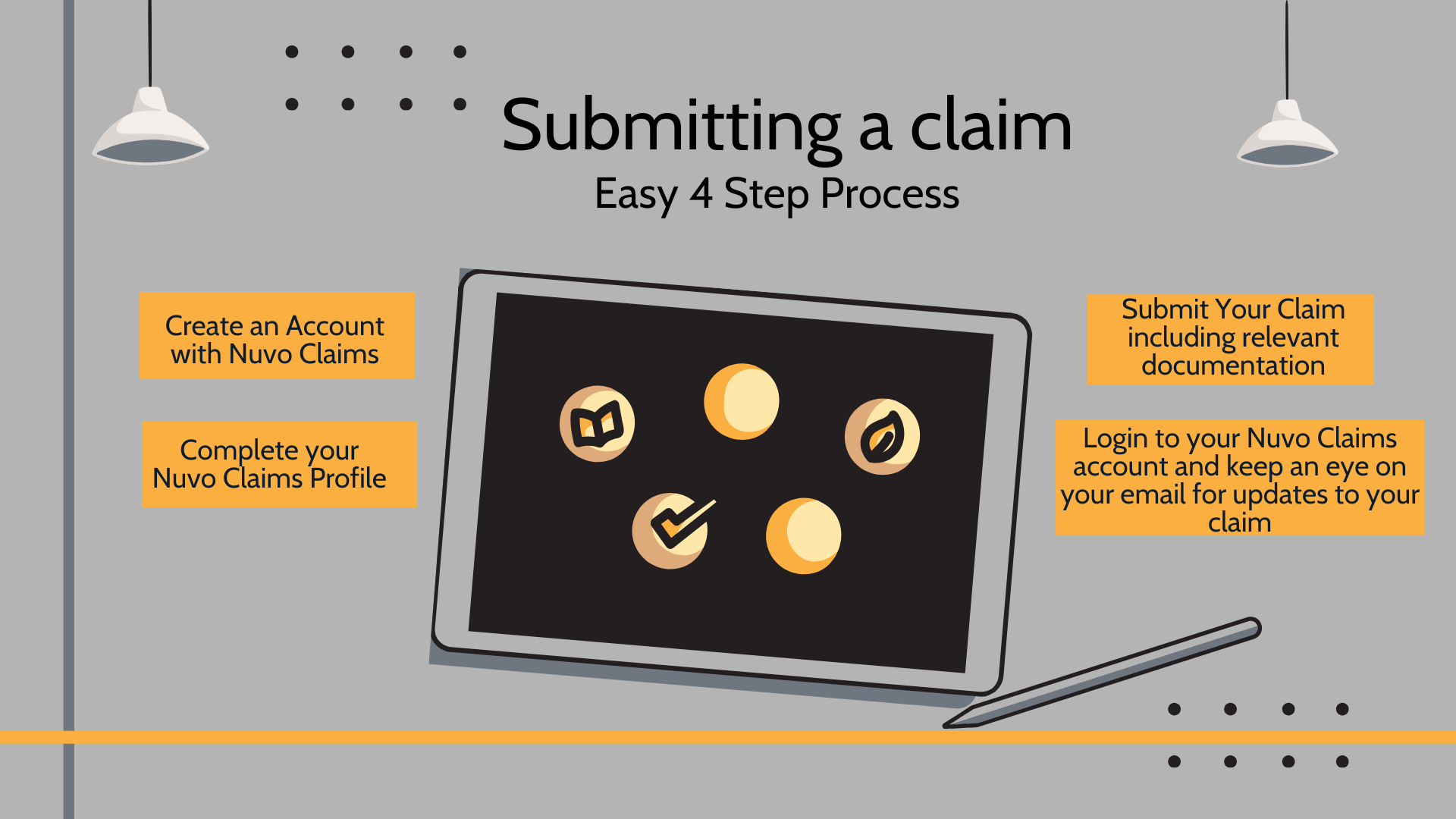
An infographic titled 'Submitting a claim: Easy 4 Step Process' with four orange boxes with instructions, a tablet with icons representing steps in the process, and a stylus on a gray background. The process includes creating an account, completing a profile, submitting a claim, and monitoring email updates.

How to create an account

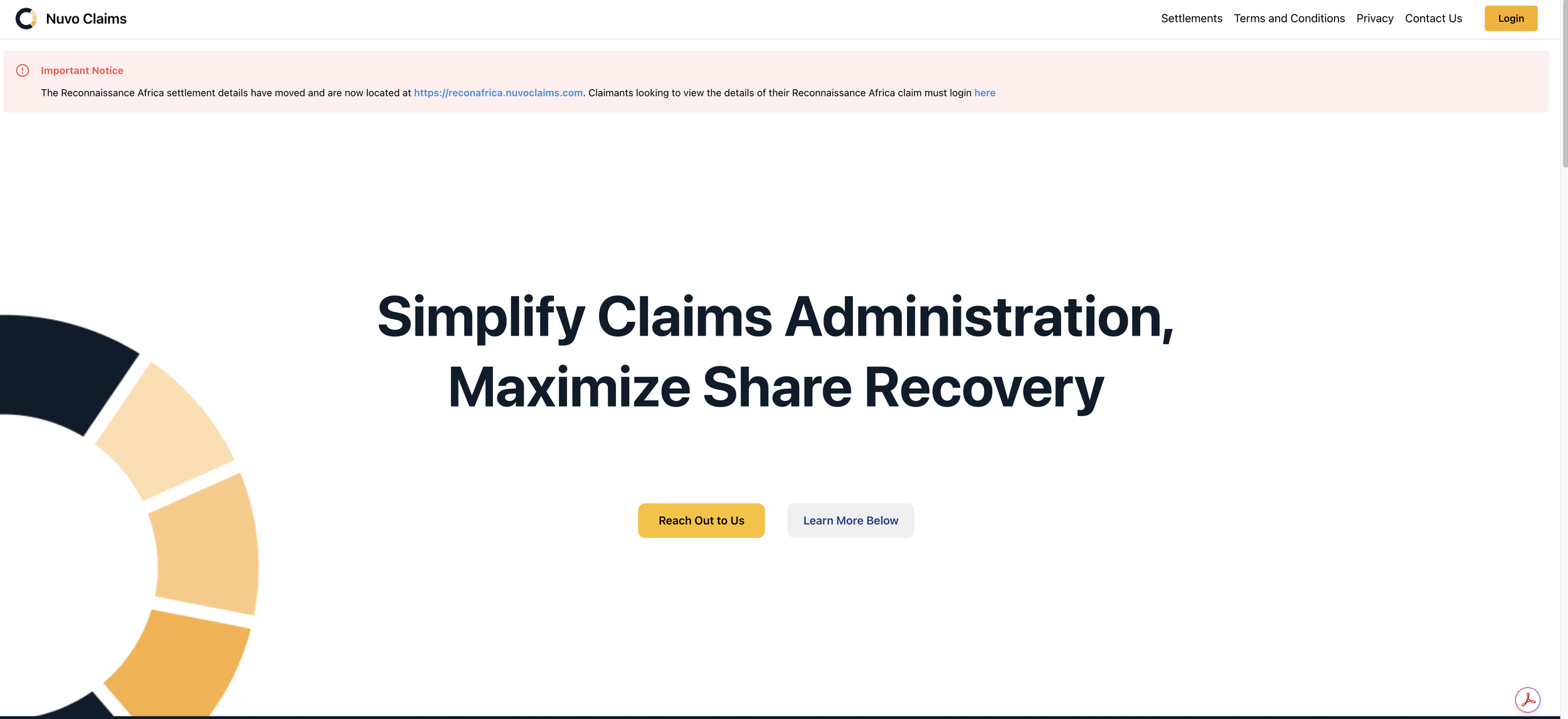
Screenshot of Nuvo Claims website with a large headline that reads 'Simplify Claims Administration, Maximize Share Recovery' and two buttons labeled 'Reach Out to Us' and 'Learn More Below.' The website header includes links for Settlements, Terms and Conditions, Privacy, Contact Us, and a yellow Login button. There is a red notice at the top about the Reconnaissance Africa settlement details moving to a new link.
  • Click SIGN UP

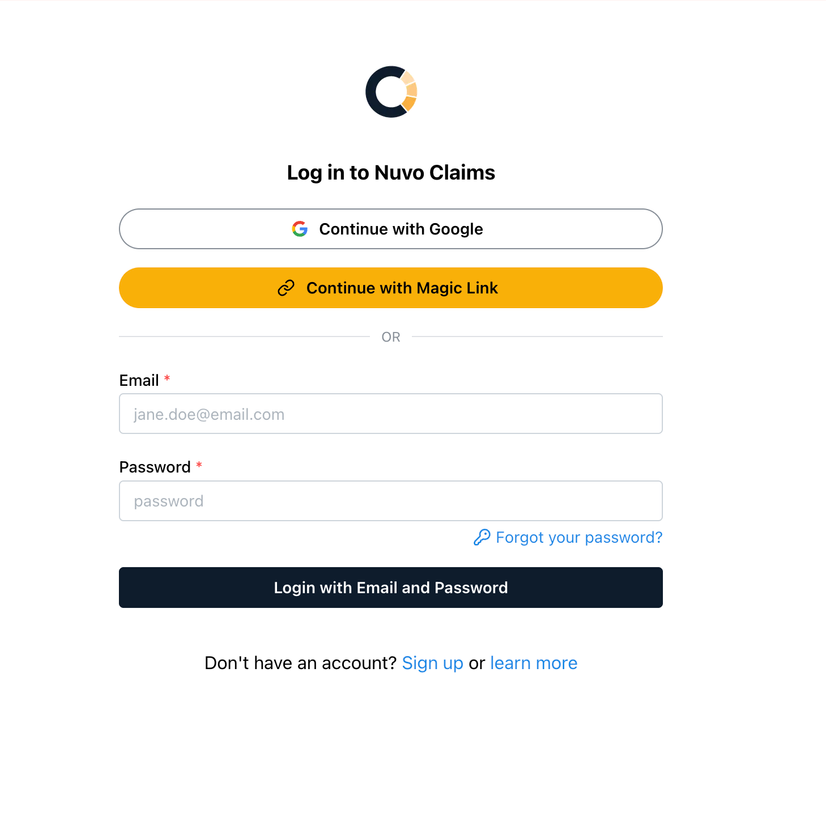
  • You have 3 options for how to sign up:

    • Use an existing Google Account (recommended)

    • Use the Magic Link

    • Use your email and a secure password

Login page for Nuvo Claims with options to continue with Google or Magic Link, fields for email and password, and links for password reset, sign up, or learning more.
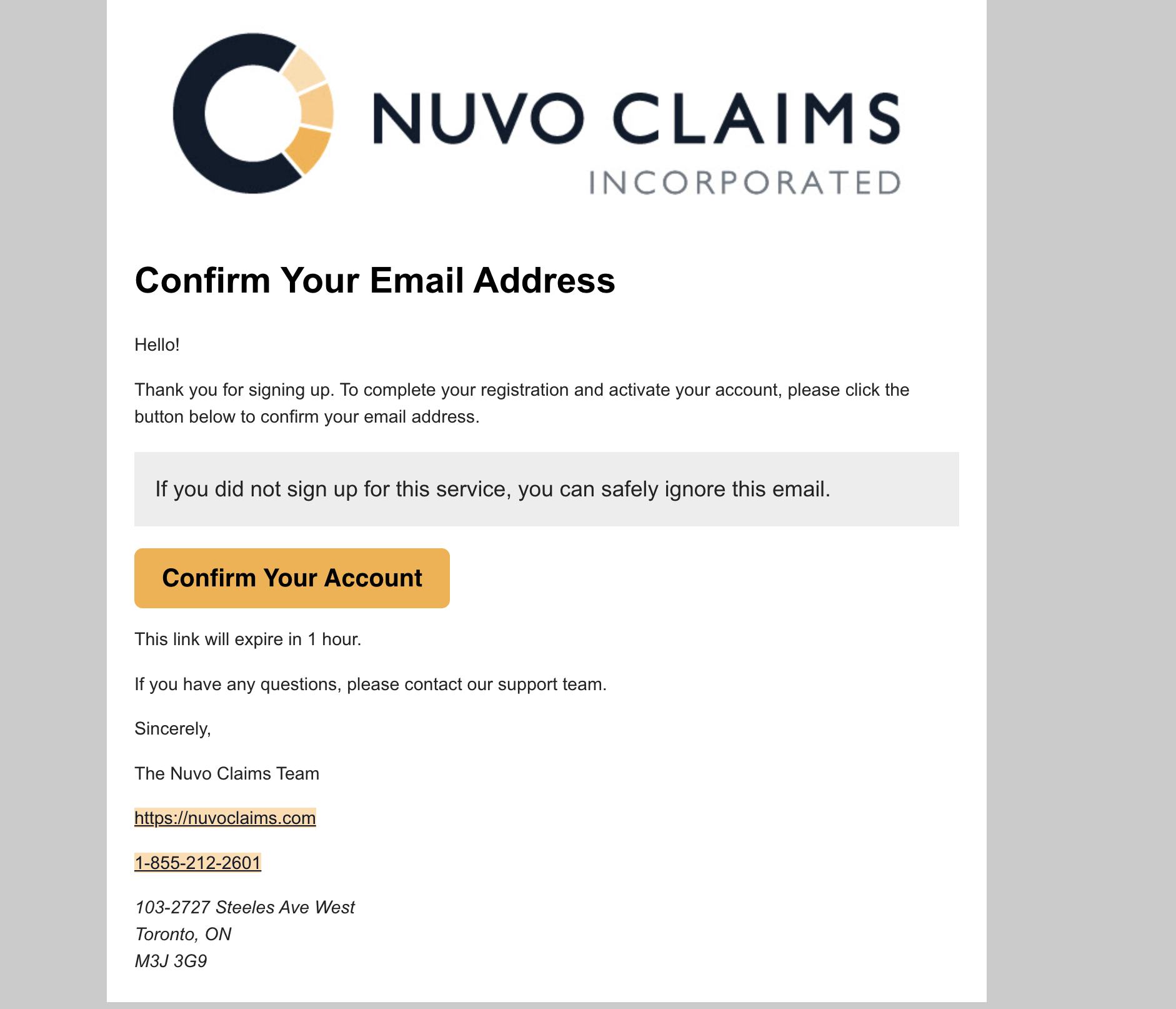
  • Once you have created an account, you will need to confirm your email address

  • Go to the email address you used for creating your account and look for an email from Nuvo Claims Inc.

  • Click on CONFIRM YOUR ACCOUNT button

An email confirmation message from Nuvo Claims Incorporated asking the recipient to verify their email address with a prominent orange 'Confirm Your Account' button. The message includes contact information and a website URL.
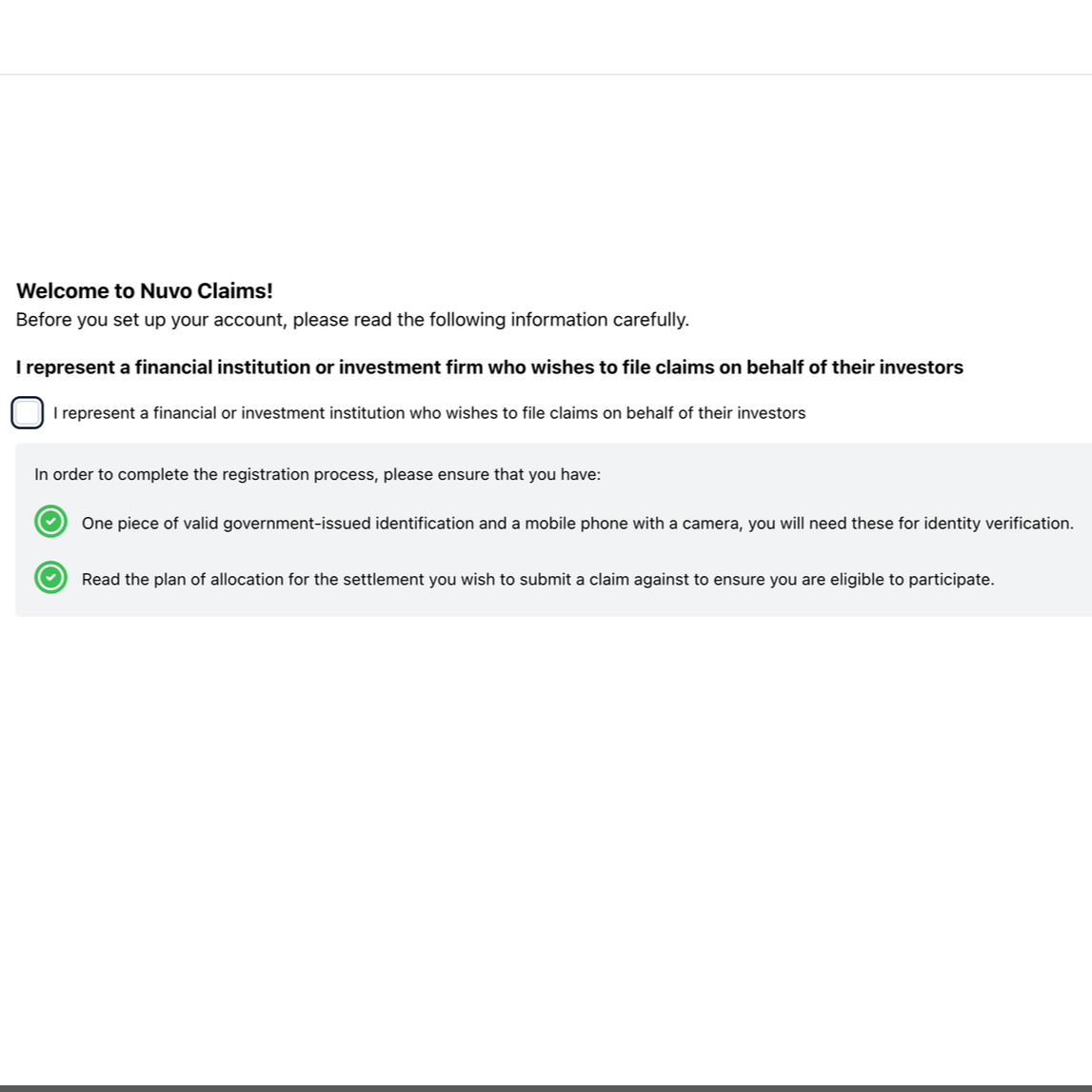
A webpage titled 'Welcome to Nuvo Claims!' with instructions for account setup, including checkboxes and green check marks for verification requirements.
  • Once you have created an account and confirmed your email, you will be able to set up your profile

  • It is a 6 step process that will require you to verify your identity using your smartphone and a piece of government issues identification - so get those ready!

Setting up your Nuvo Claims profile

Step 1 - Personal Information

  • Fill out the fields with your personal information

    • Please ensure you use your legal name (as found on your identification)
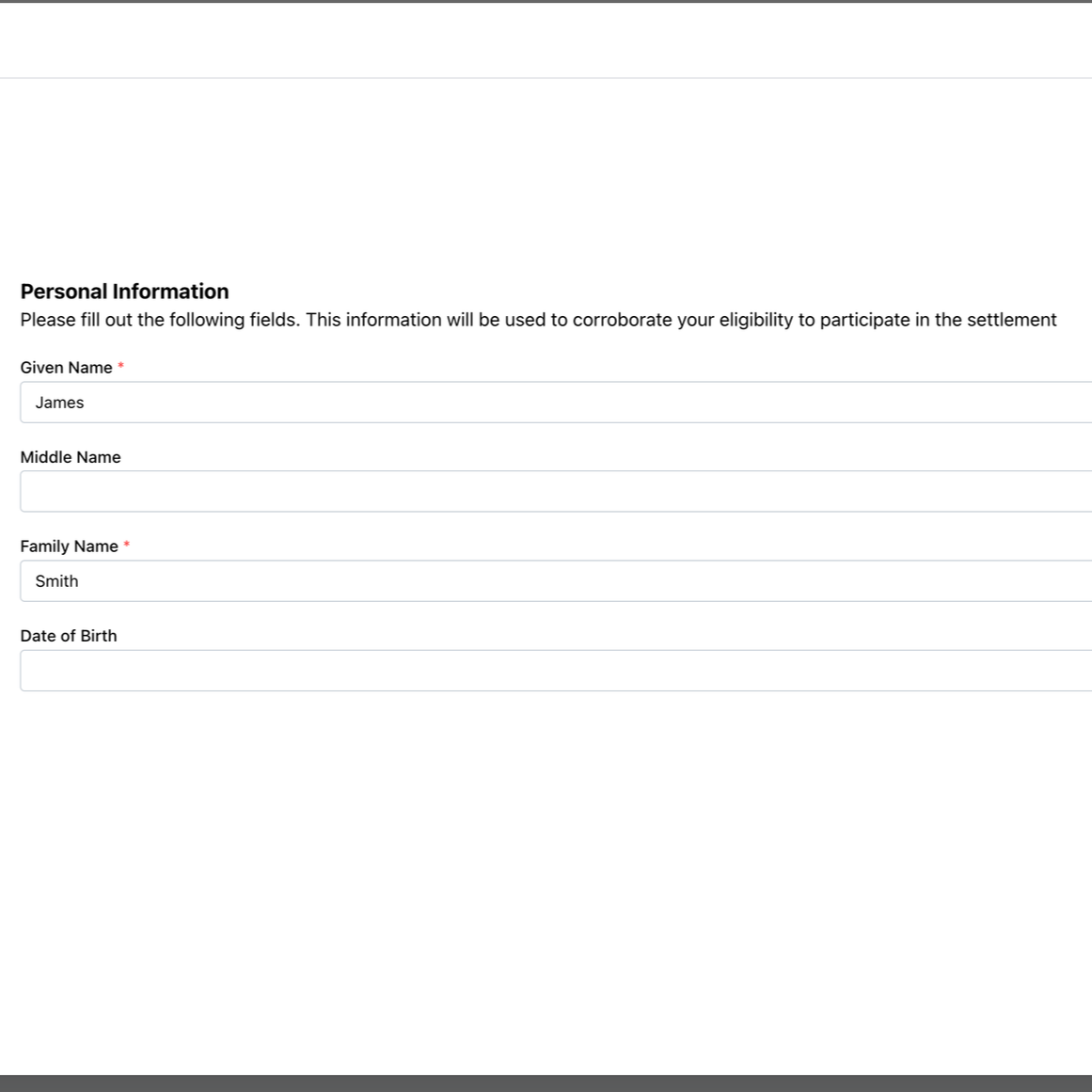
Online form titled Personal Information with fields for Given Name, Middle Name, Family Name, and Date of Birth, with sample entries filled in.

Step 2 - Verify your identity

  • It is required by law for us to ensure you are who you say you are!

  • You will need a piece of government issued ID and a smartphone for this step

  • Once you are ready, click on BEGIN VERIFICATION
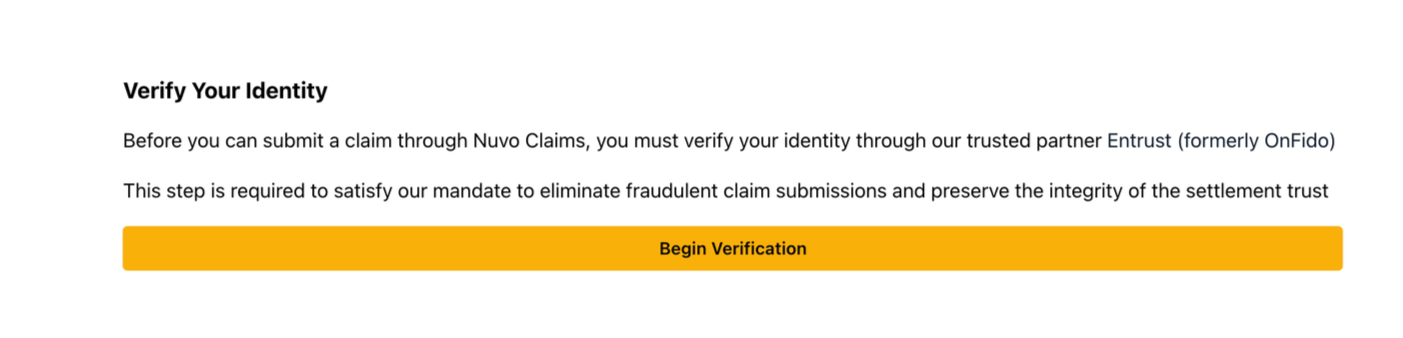
A web page titled 'Verify Your Identity' with instructions for identity verification through Nuvo Claims, including a large orange button labeled 'Begin Verification'.
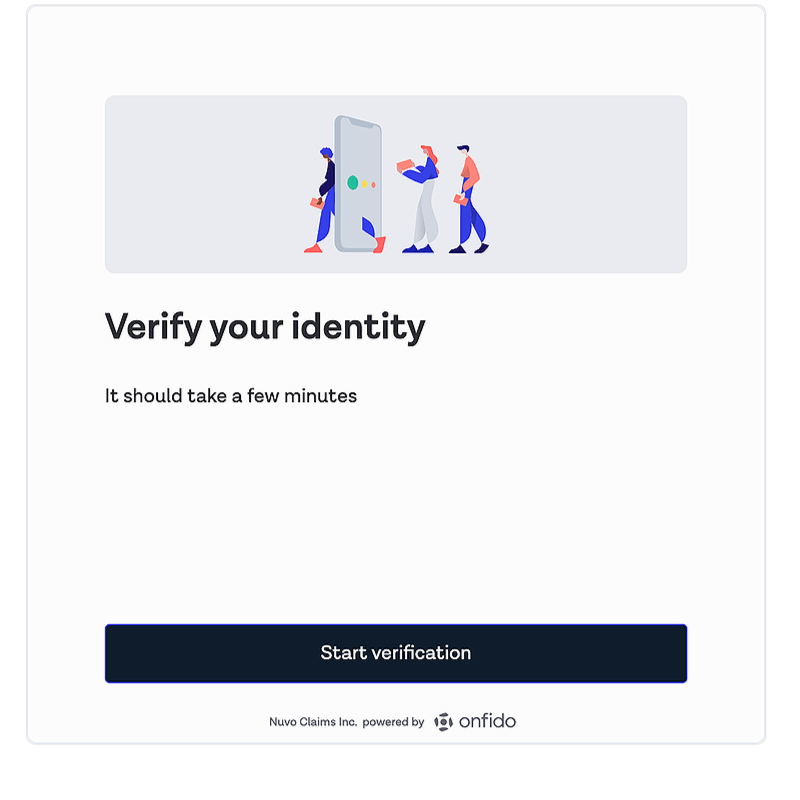
  • Click on START VERIFICATION

Screenshot of a mobile app interface for identity verification, showing three animated figures using mobile devices, with the text 'Verify your identity' and a button labeled 'Start verification'.
  • Add your personal information and click CONTINUE
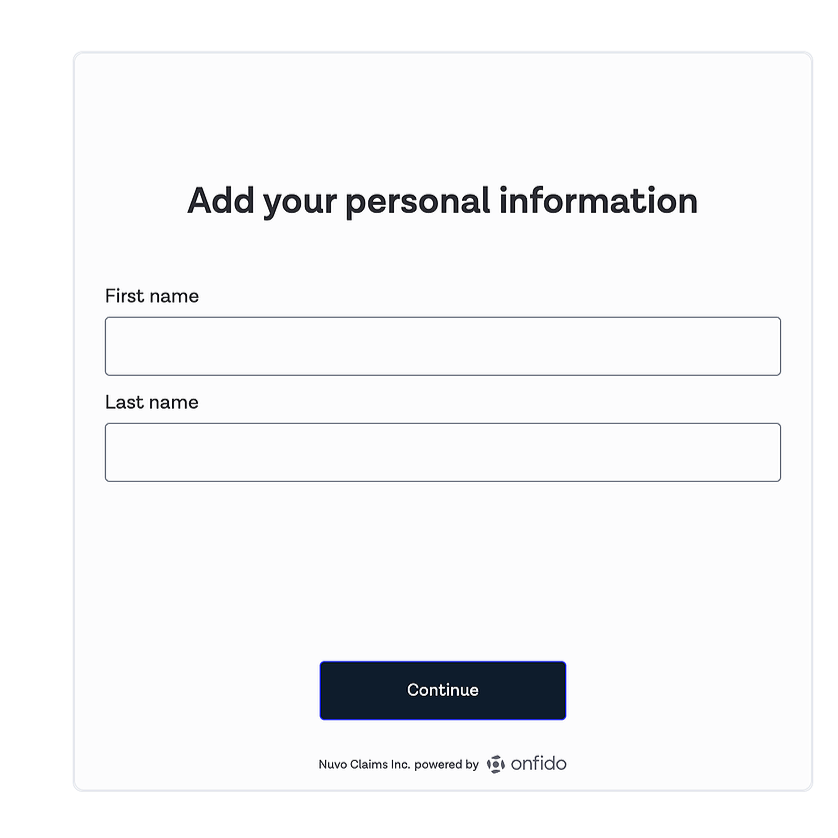
Online form asking for first and last name with a 'Continue' button, powered by Onfido.

If you have done the entire sign up process and profile creation on your phone - skip ahead

If you are on your desktop or laptop computer, you will now continue on your phone to complete the identity verification

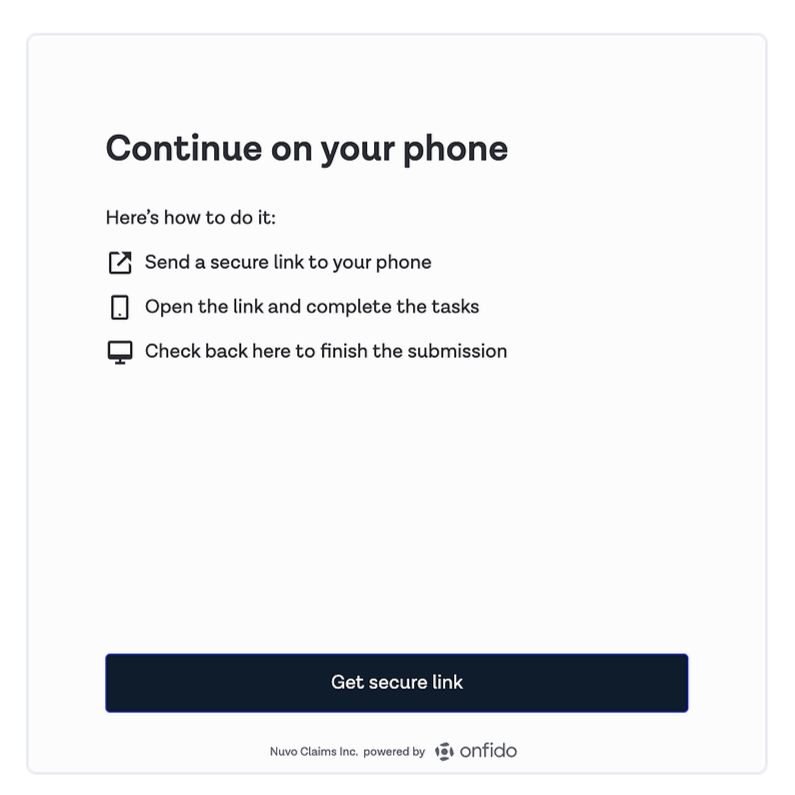
  • Click on GET SECURE LINK

Instructions for continuing on your phone: 1. Send a secure link to your phone, 2. Open the link and complete the tasks, 3. Check back here to finish the submission. There is a button labeled 'Get secure link' at the bottom. The page is powered by Onfido.
  • Using your smartphone, open the camera, scan the QR code and click on the link
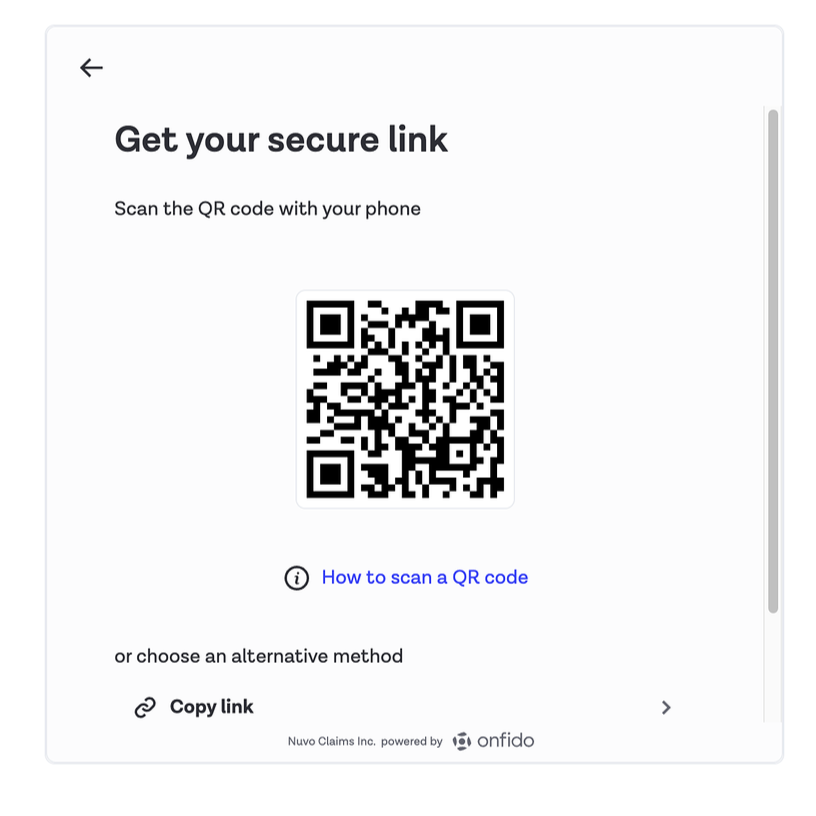
A screenshot of a mobile app screen showing a QR code for getting a secure link, with options to scan the QR code or copy the link, and instructions on how to scan a QR code.

Important: Keep you desktop window open. Once you are finished the identification step, you will continue on your desktop computer
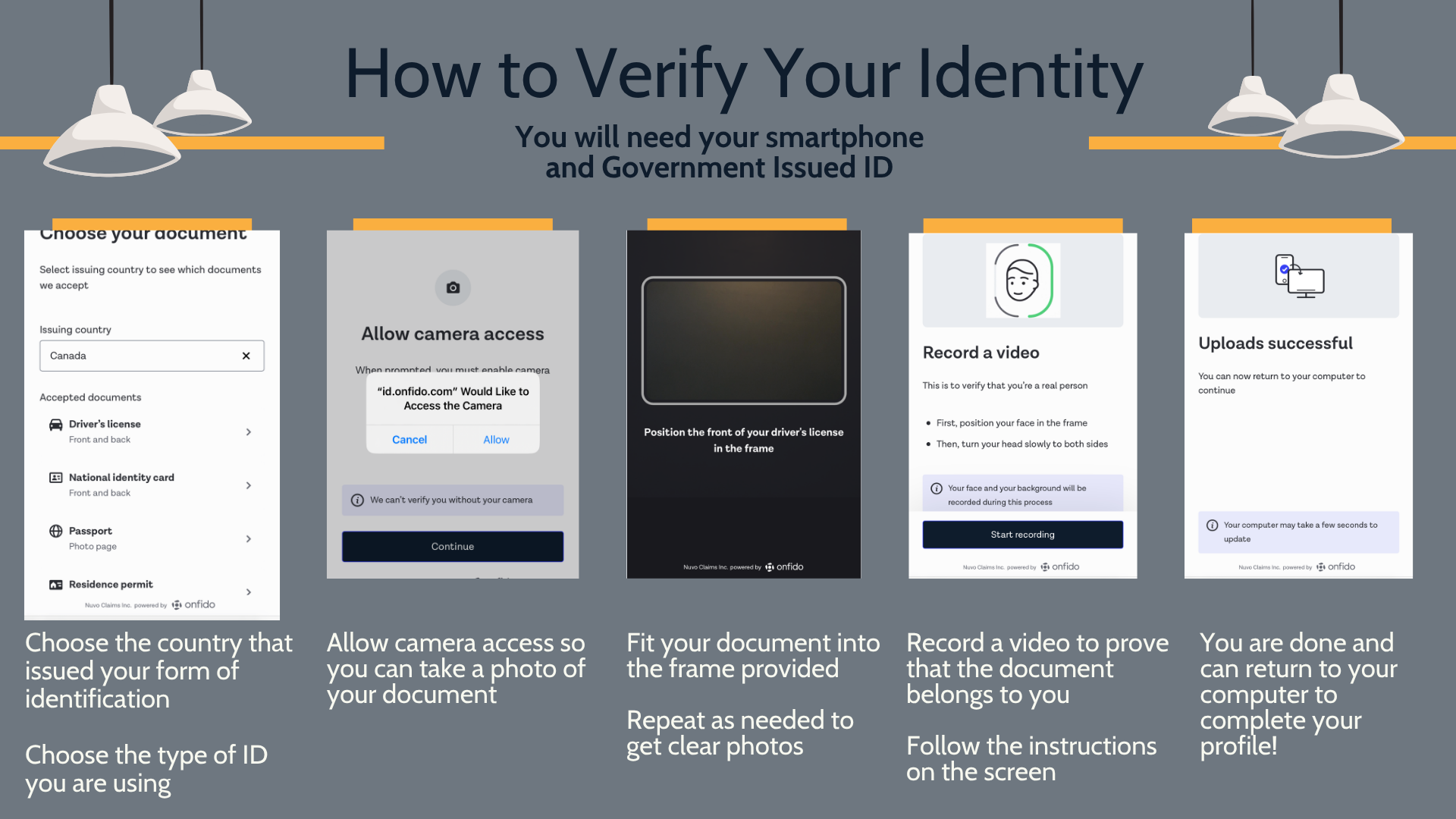
Infographic titled "How to Verify Your Identity" with five step-by-step screens demonstrating the process: 1. Choose your country and document, like driver's license or passport; 2. Allow camera access to take a photo of your document; 3. Fit your document into the frame and press continue; 4. Record a video of yourself as instructed; 5. Uploads are successful and you can return to your computer to finish.

Congratulations on successfully verifying your identity!

Click CONTINUE

Step 3 - Contact Information

  • Fill in the contact information fields
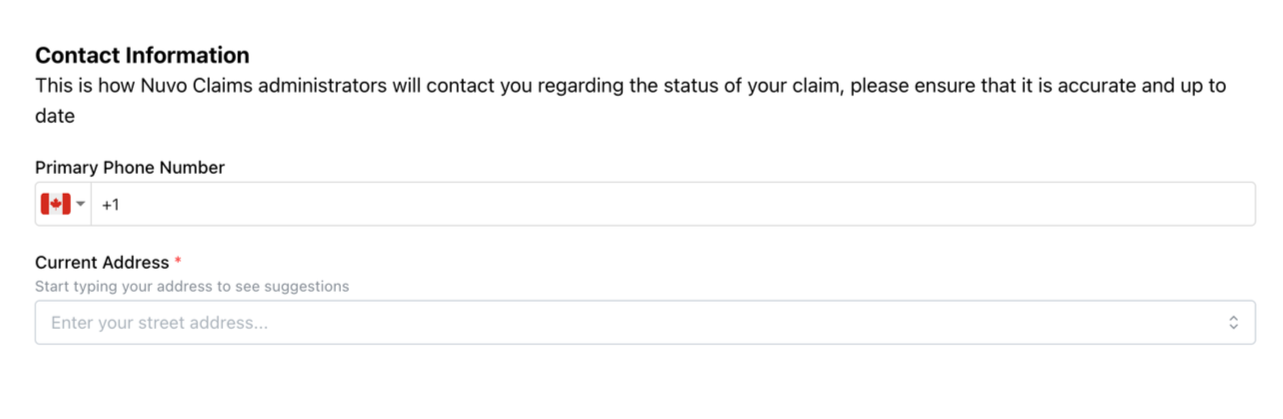
Screenshot of a contact information form with fields for phone number and address, including an option to select a country flag and entering the street address.

Steps 5 & 6 - Confirmation & Onboarding Complete

  • Review all your information to ensure it is accurate

  • If you want to edit any of the information, click BACK

  • If all your information looks correct, click CONTINUE
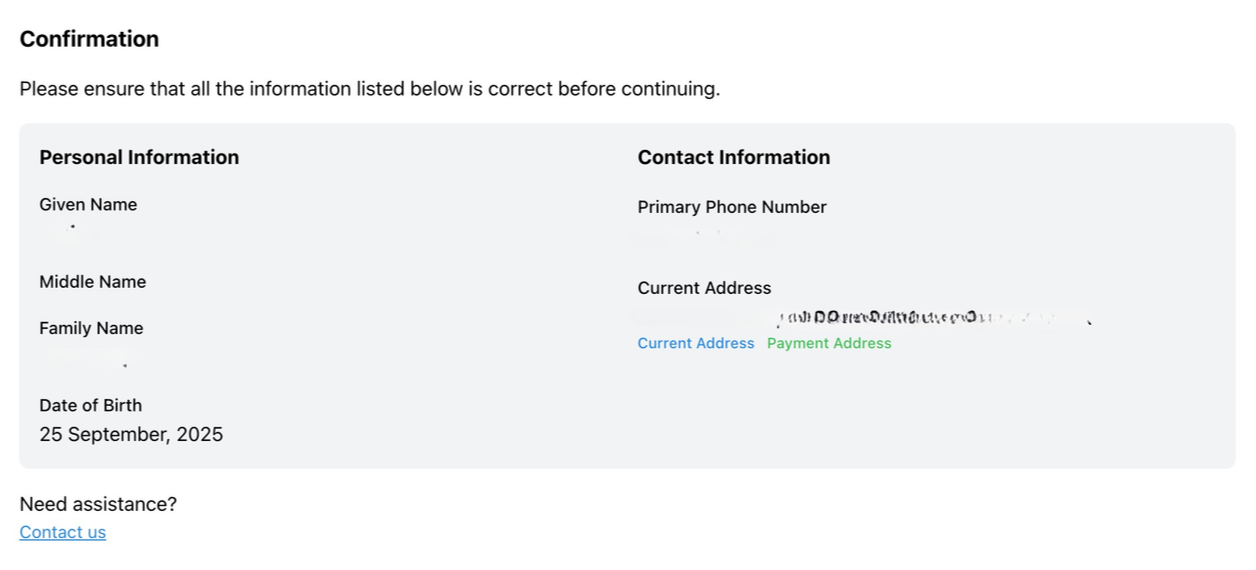
A confirmation form displaying personal and contact information, including name, date of birth, and addresses, with a note for assistance and a contact link.

Congratulations - you have successfully set up your Nuvo Claims profile!

Submitting your Claim and Supporting Documentation

  • Now that you have your Nuvo Claims account and profile set up, you can submit your claim and supporting documents.

  • From your Nuvo Claims dashboard, click on SUBMIT A CLAIM
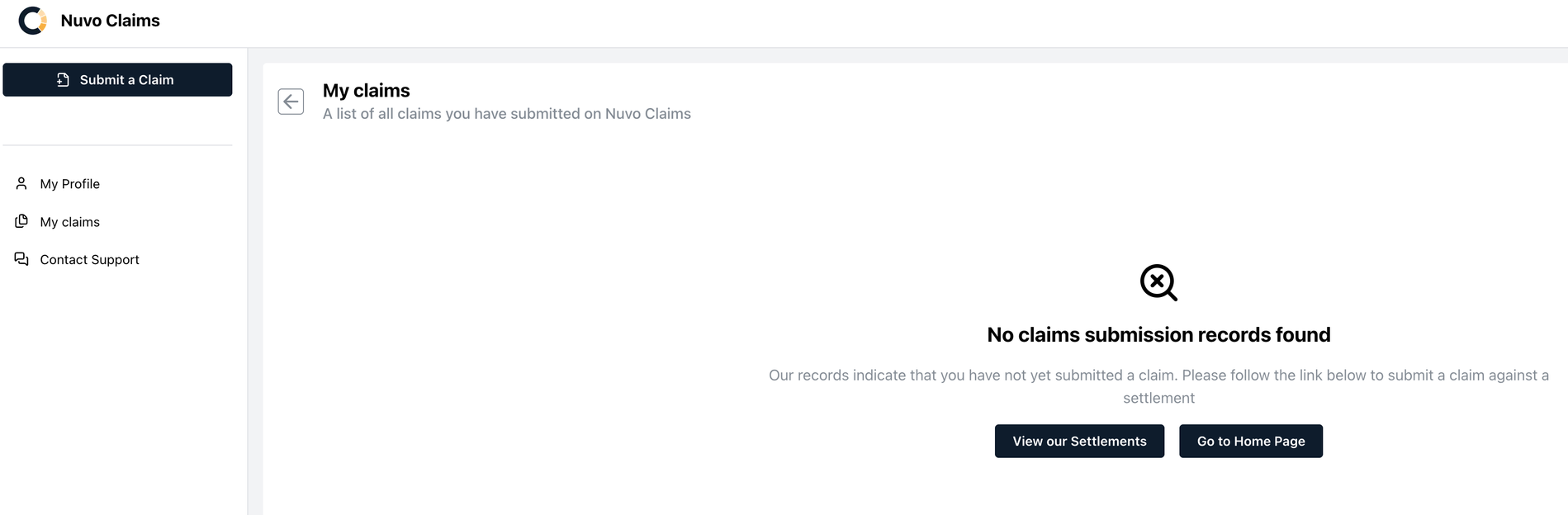
Screenshot of a Nuvo Claims online portal page showing no claim submissions, with a message indicating 'No claims submission records found,' and options to view settlements or go to the home page.
  • Click on the settlement/case you want to submit to
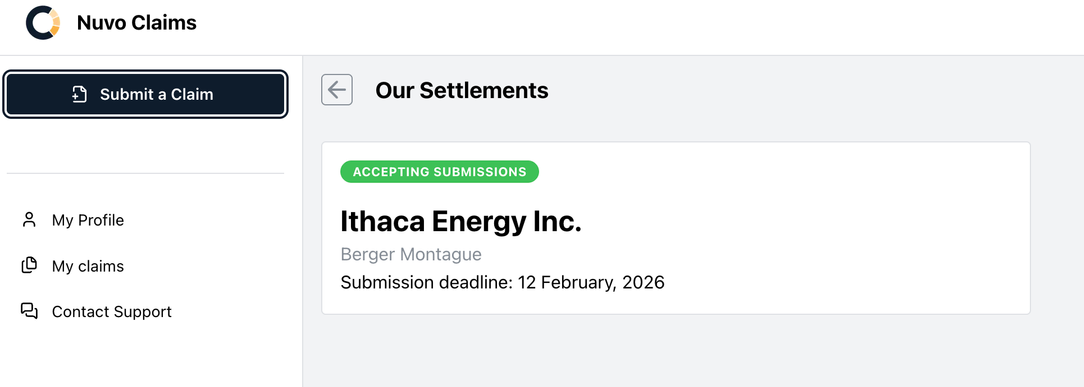
Screenshot of Nuvo Claims webpage showing 'Our Settlements' with Ithaca Energy Inc. submitted by Berger Montague, deadline February 12, 2026, and a button to submit a claim.
  • Carefully review the information on this page and then check the box when you have read it before clicking NEXT STEP
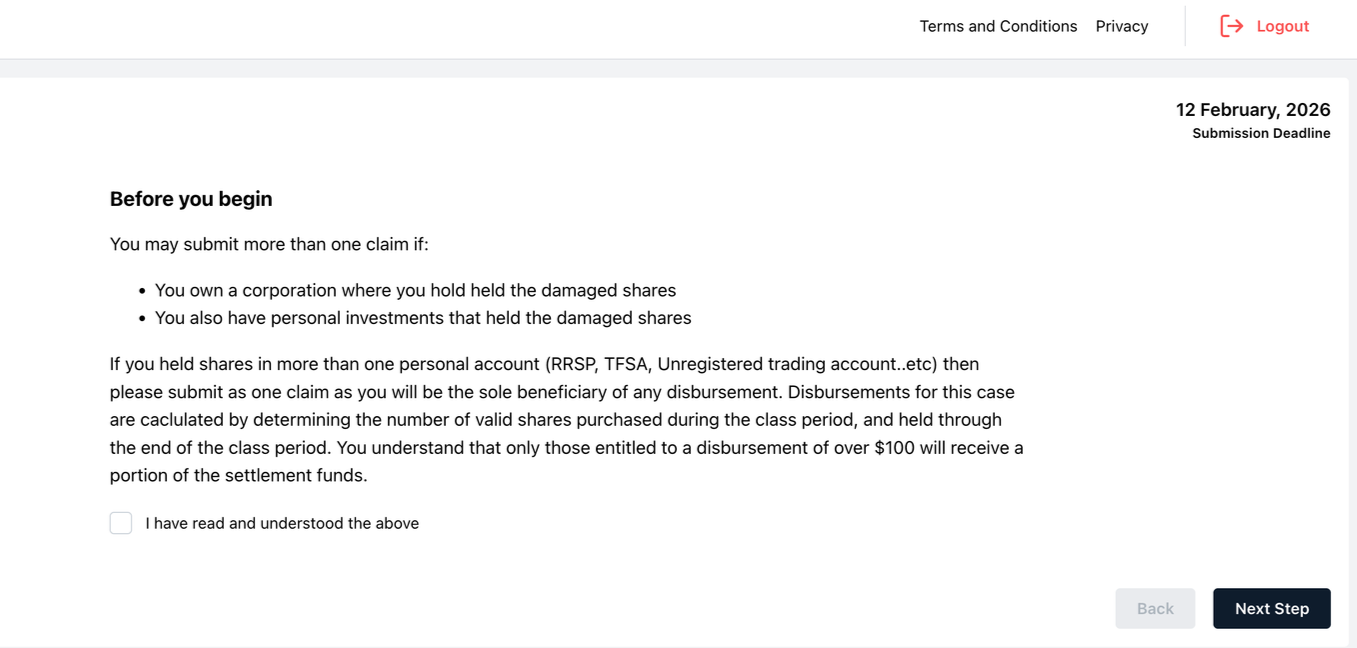
Screenshot of a webpage with instructions for submitting claims, including a checkbox, submission deadline of February 12, 2026, and navigation options for 'Back' and 'Next Step'.
  • Carefully review the Terms of Service and check the boxes before clicking NEXT STEP
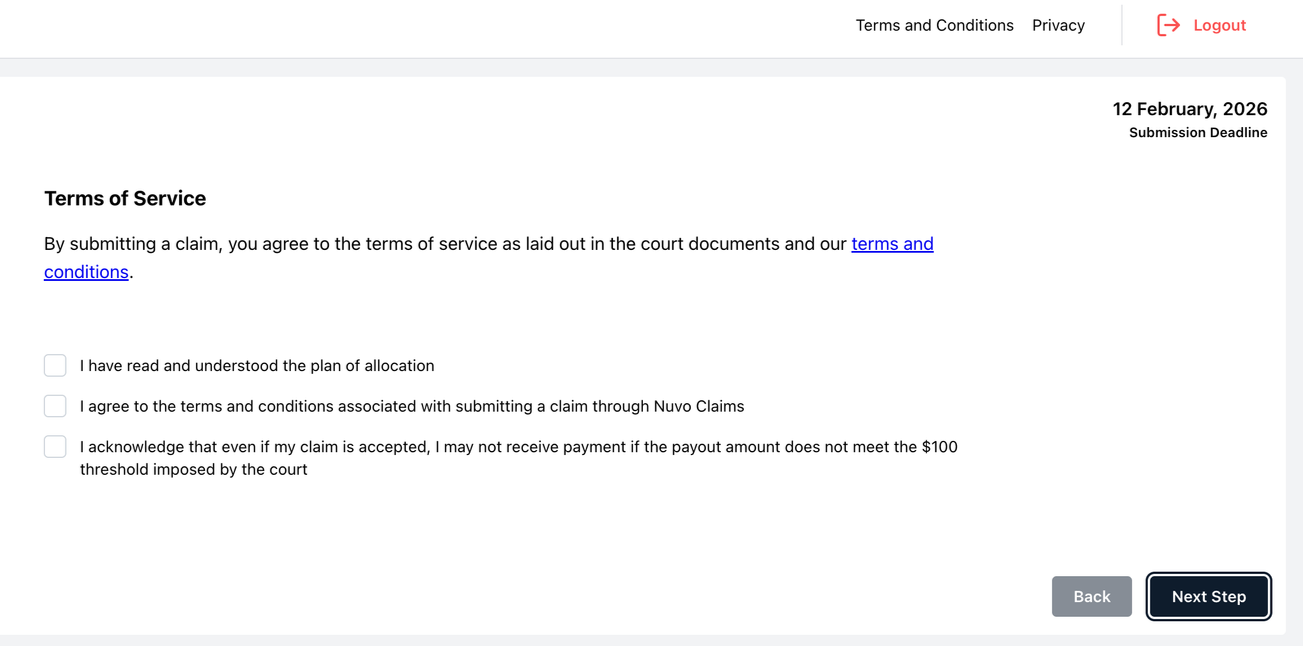
Online claim submission form displaying terms of service, checkboxes, and a Next Step button.
  • If applicable, indicate if you are submitting the claim on behalf of a deceased relative or on behalf of a corporation for which you are the owner

  • If neither apply to you, continue on and click NEXT STEP
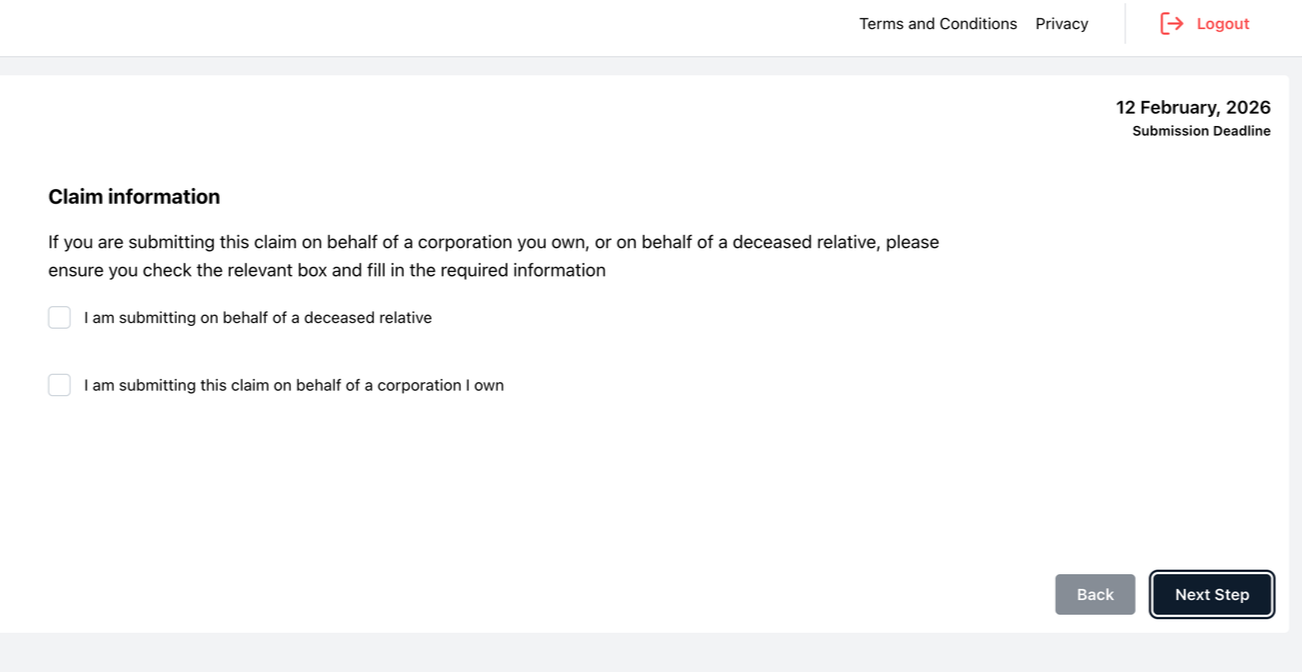
Online tax or claim submission form with section titled 'Claim information', offering options to specify if submitting on behalf of a deceased relative or a corporation, with 'Next Step' and 'Back' buttons.
  • It’s time to submit your supporting documents

  • Upload relevant brokerage statement and holding statement by dragging and dropping files into the relevant box or by selecting files from your computer. Note: you can always log in to add additional documents later

  • Indicate the number of shares you held at the end of the class period in the section provided

  • Once you have provided your documents and number of shares, click SUBMIT CLAIM
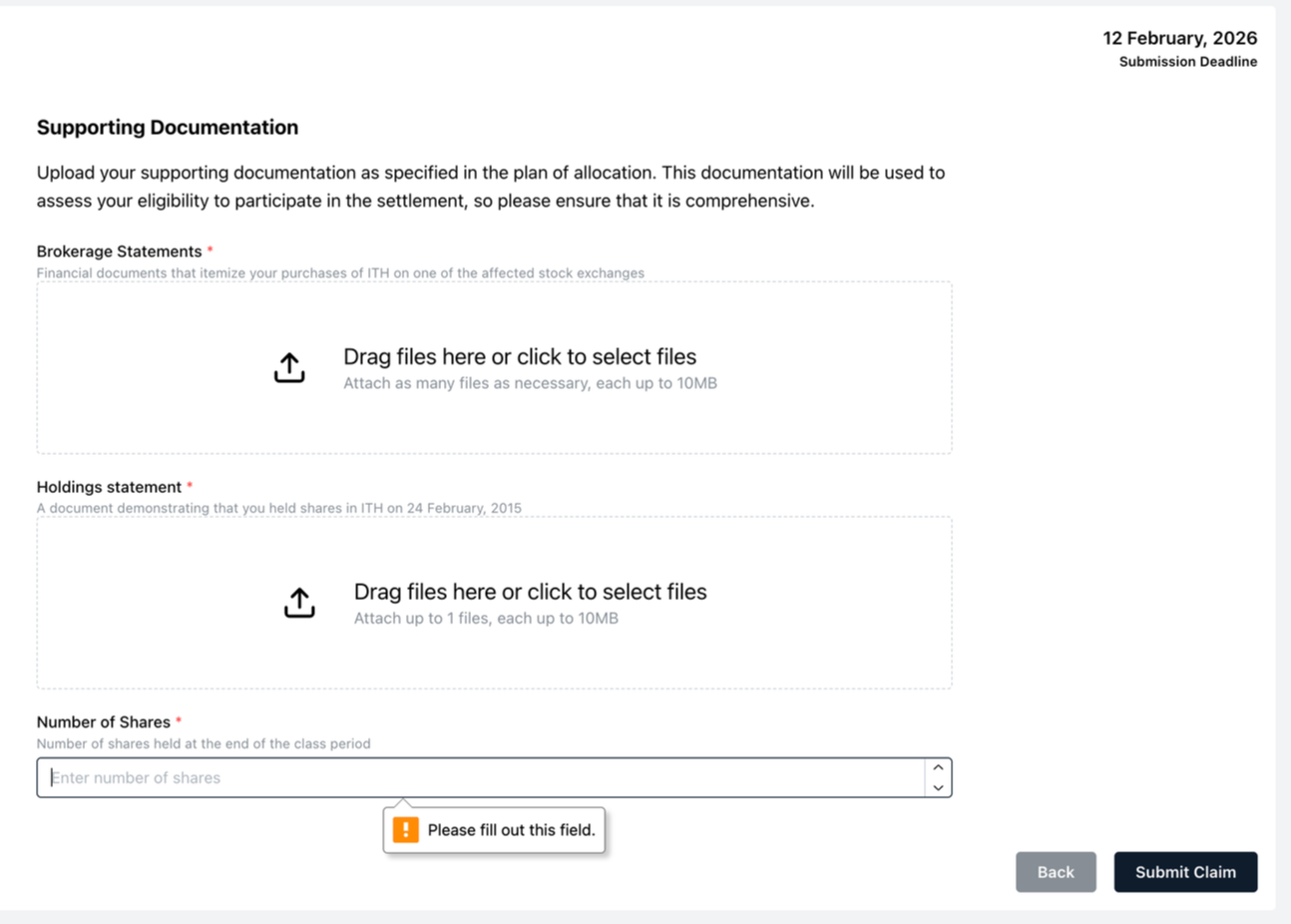
Online form for submitting supporting documentation for brokerage statements, holdings, and number of shares, with fields to upload files and enter share count, dated February 12, 2026.

Please note that we require all documents to show your legal name and account number/type. We cannot accept screenshots.
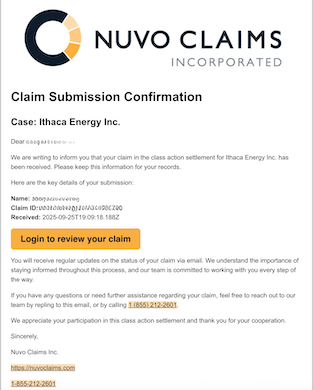
Claim submission confirmation letter from Nuvo Claims, includes case info for Ithaca Energy Inc., with a login button and contact information.
  • Once you have submitted your claim, you will receive an email confirmation

  • Remember: You can log in to your account at any time to review your claim